Background
I bought this keyboard quite a while ago. I had been using it at the office, connected to my work computer via cable — after the initial setup, it never needed any changes. Recently, while working from home, I needed to connect it to multiple devices, and since my home desk space is very small, I switched to Bluetooth. Although I had kept an electronic copy of the manual, I still didn’t know how to configure it when the time came — I kept forgetting the shortcuts and ended up searching all over the web, wasting quite a bit of time. So here’s a simple note to myself as a memo. If you happen to use an HHKB series keyboard too, I hope this helps a little.
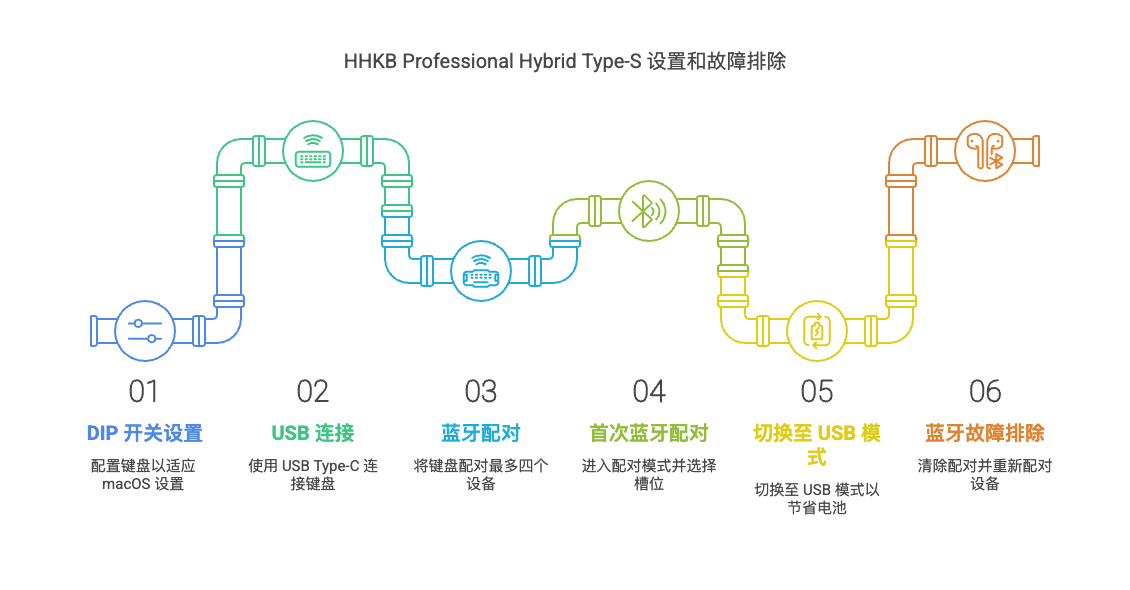
Product Overview
- Model: HHKB Professional Hybrid Type-S
- Connection: USB Type-C & Bluetooth 5.0
- Battery: built-in rechargeable lithium battery
- Compatible systems: Windows/macOS/iOS/Android
Basic Setup
DIP Switch Settings
Recommended settings for macOS mode:
SW1: OFF  - Enable the Fn key
SW2: ON   - Delete key acts as ⌫ (Backspace)
SW3: ON   - ⌘ key at the [Alt] position
SW4: OFF  - Enable Windows/macOS keys
SW5: OFF  - Keep default key layout
SW6: OFF  - Keep default key layout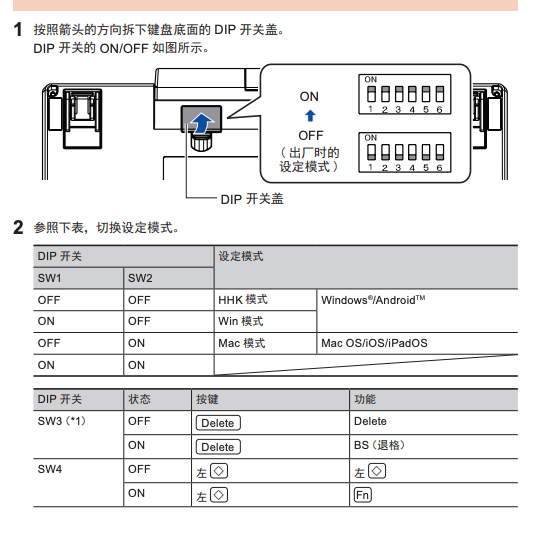
Connection Methods
1. Wired USB Connection
- Connect to the computer with the included USB Type-C cable
- Switch to wired mode:
Fn + Control + 0
2. Bluetooth Wireless Connection
- Supports pairing with up to 4 devices simultaneously
- Switch devices:
Fn + Control + [1-4] - Check battery level:
Fn + Control + B- Green light: battery sufficient
- Orange light: battery medium
- Red light: battery low
Keyboard Shortcuts
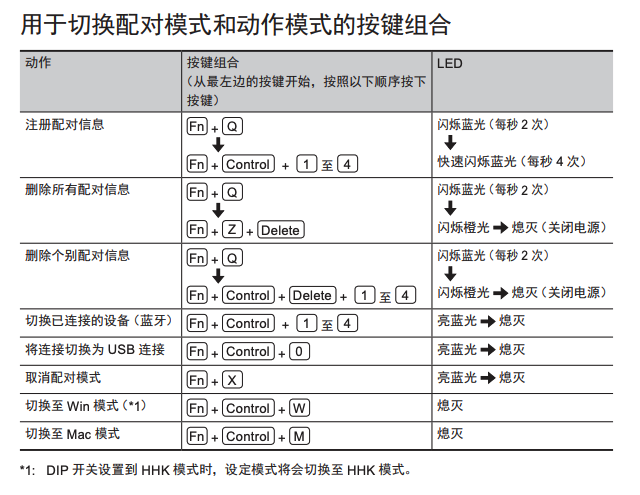
Common Usage Scenarios
Scenario 1: First-Time Bluetooth Pairing
- Press
Fn + Qto enter pairing mode (the blue LED blinks) - Press
Fn + Control + [1-4]to select a pairing slot - Select “HHKB-Hybrid” in your device’s Bluetooth settings
- Enter the pairing code as prompted and press Enter to confirm
Scenario 2: Switching to USB Mode
When the battery is drained or you need wired mode:
- Press
Fn + Control + 0to switch to USB mode
Scenario 3: Bluetooth Connection Troubleshooting
If your device can’t find the keyboard via Bluetooth:
- Clear pairing information:
Fn + Z + ~(the keyboard will power off automatically) - Long-press the power button to restart the keyboard
- Press
Fn + Qto enter pairing mode - Press
Fn + Control + [1-4]to select a pairing slot - Restart Bluetooth on your device and search again to pair
Maintenance
- Clean the keycaps regularly with a keyboard cleaning tool
- Avoid direct sunlight and high-temperature environments
- Charge it once every 3 months to keep the battery healthy
Technical Specifications
- Switch type: Topre electrostatic capacitive switches
- Key travel: 3.8mm
- Actuation point: 1.8mm
- Lifespan: 50 million keystrokes
- Charging port: USB Type-C
- Battery life: about 3 months (varies with usage)
References
Follow the WeChat official account 技术后花园 (Tech Backyard) for more